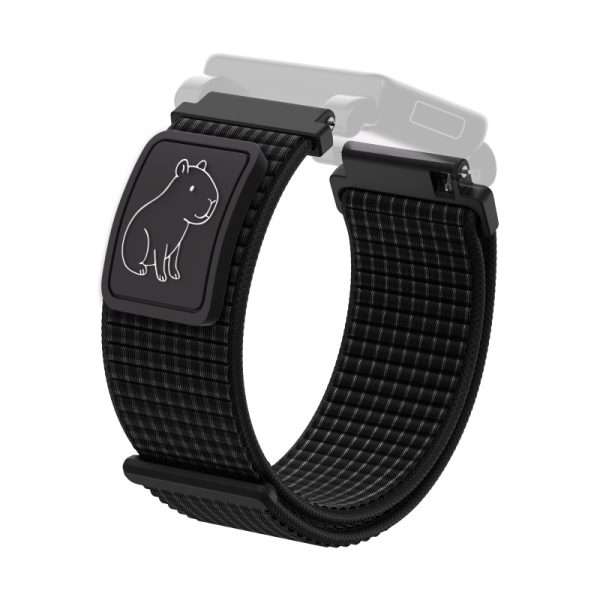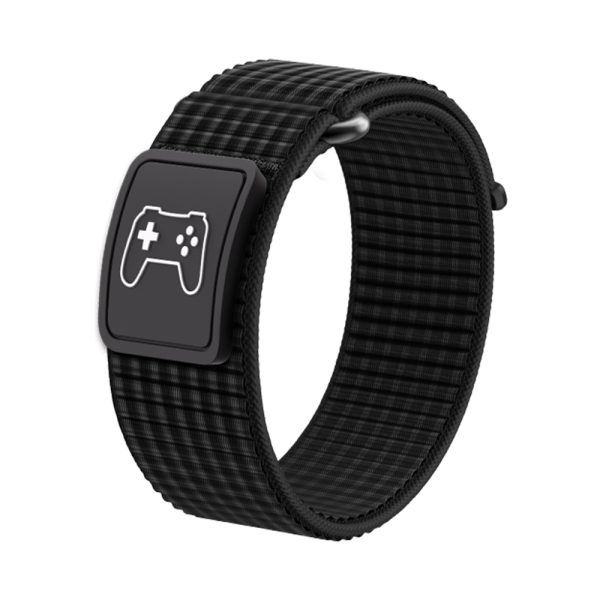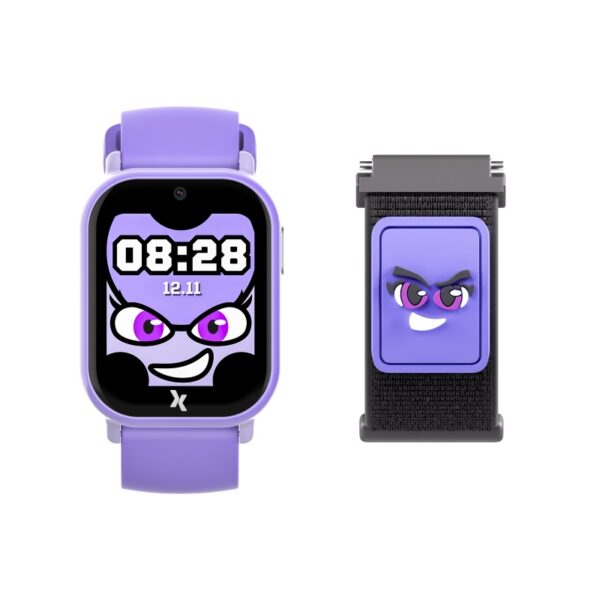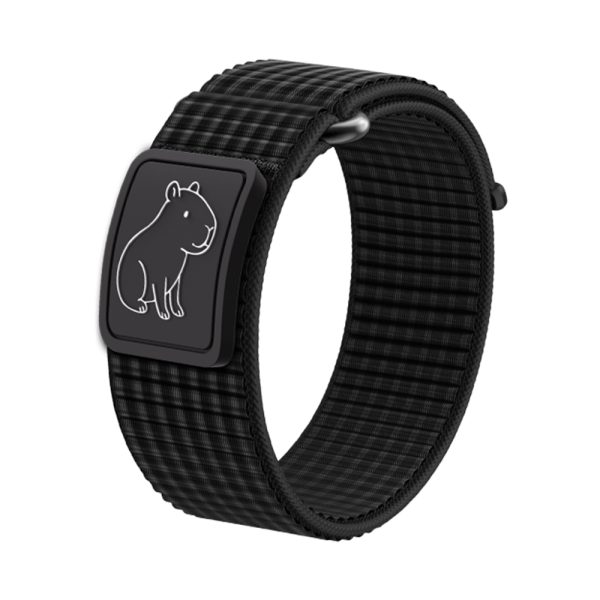










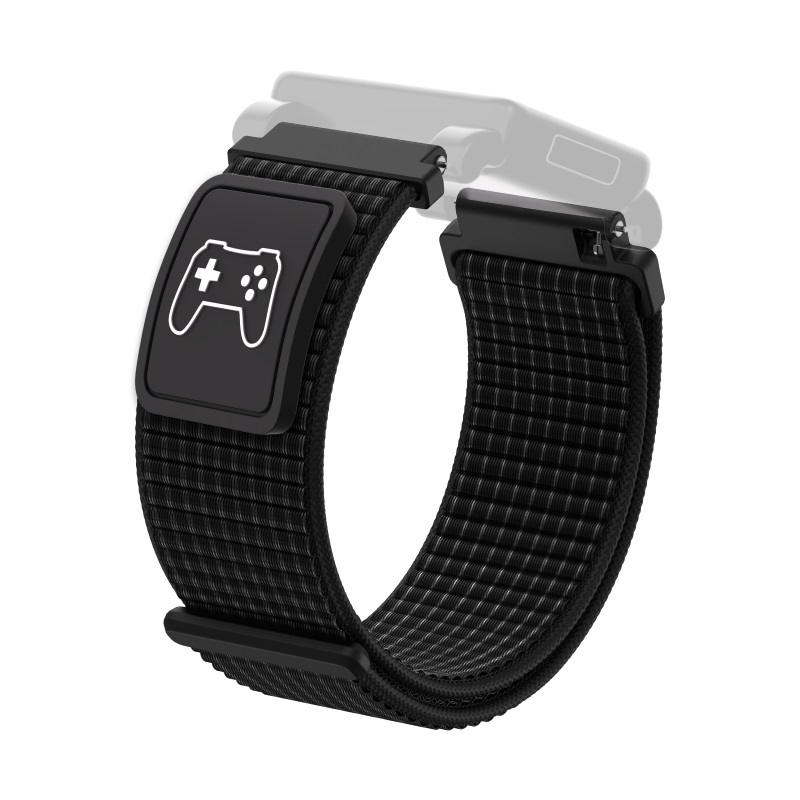
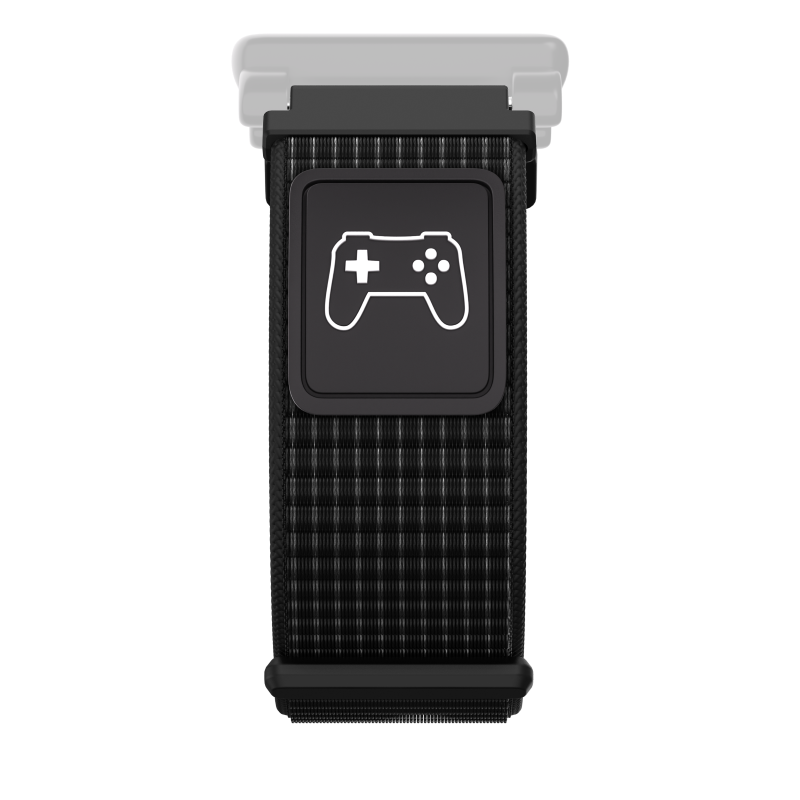
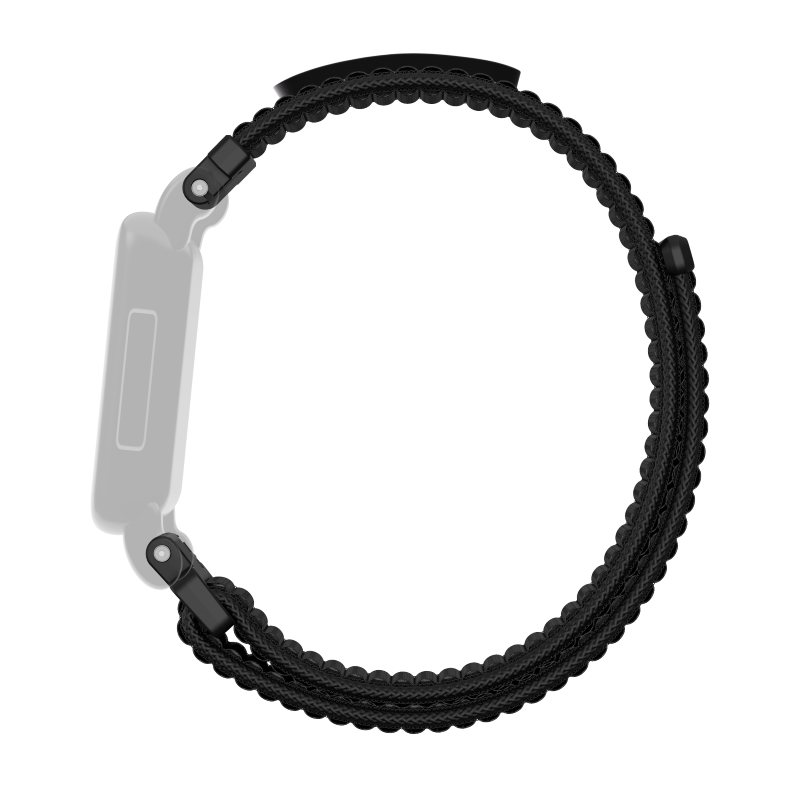
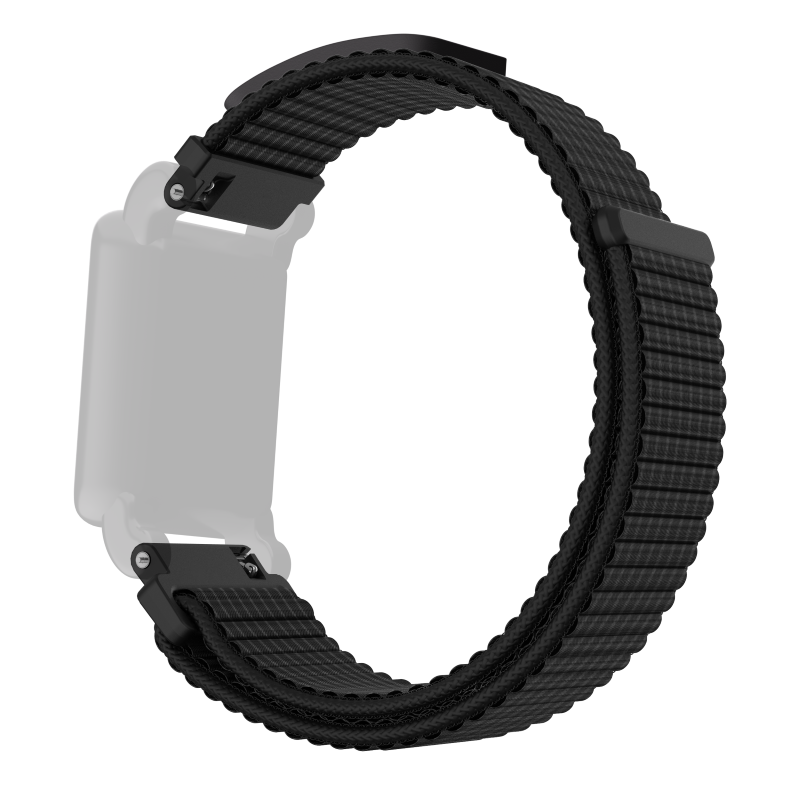
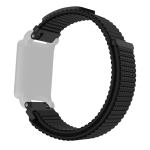
Payment strap – gamepad
Technical Specifications:
- Color Black
- Breathable fabric Yes
- Template Gamepad
- Strap width 21.5 mm
- Clasp Velcro
- Max wrist circumference ~ 185 mm (depending on the size of the attached watch)
Product description
Description
Payment strap Maxcom Pay Pad
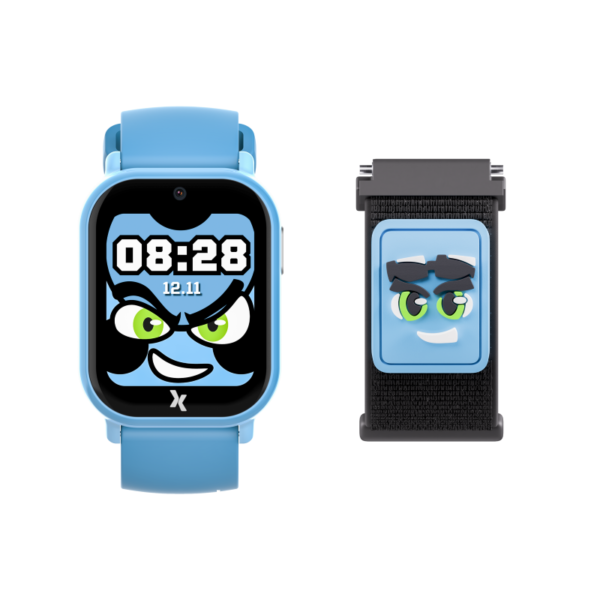
The Maxcom Pay Pad solution is a replaceable payment strap that turns a children’s smartwatch into a practical payment tool.
Thanks to our partnership with Fidesmo Pay, Visa, and Mastercard, you can easily add your payment card and set limits in your online banking. You have access to every purchase, and if you lose your strap, it only takes one click to deactivate it.
Transaction security is guaranteed by:


Convenience, security, and full control
Maxcom Pay Pad payment strap This primarily provides protection during everyday shopping. Thanks to the fact that the NFC chip is linked to the account and the entire system works with Visa and Mastercard, a child can make contactless payments anywhere and at any contactless payment terminal. If the wristband is lost, it is deactivated immediately.
-
Quick payments: A child can leave their wallet at home and pay cashless at a contactless terminal. How? Just tap the strap and you’re done!
-
Transaction history: All payments are recorded in real time in your bank’s app, giving you control over your spending
-
Protection: The device works with supported banks, guaranteeing the highest level of security
Payment card
Or a watch strap?
The decision is simple! Transactions using these straps function like a new wallet on your wrist, connected to your watch. With Maxcom Pay, you give your child the opportunity to learn about safe spending and financial responsibility.
The strap is versatile and allows you to make secure payments in stores, on public transportation, or at the school store, replacing traditional cash and a wallet. You have full control, and you can monitor every transaction in the app.
Choose Maxcom Pay—contactless payments have never been easier!
How does it work?
It’s a piece of cake!
All you need to do is change the strap and go through a simple setup process. Start by installing the Fidesmo app and add your payment card. Then select the option to link the strap, including linking your card, set spending limits, and monitor your child’s purchases.
Add a card
Enter it into the app and pair it with the strap
Set limits
Check your balance and review transactions in the bank’s mobile app
The transaction process is supervised by banks, which ensures a high level of security in accordance with
Visa and Mastercard standards.
Initial setup of the strap requires a few simple steps, after which the device
works with supported banks and allows you to quickly use contactless payment services
at any store or service location. The strap’s color is versatile, and it is made of durable material. It has a standard width
(you don’t need exact measurements of your hand), (you don’t need to take exact measurements of your hand),
ensuring a perfect fit on your wrist and preventing it from wearing out quickly. The straps are durable and
feature a comfortable Velcro closure.
Secure payment method
Indispensable in everyday situations—from the school store to a winter break trip

The Maxcom Pay strap is:
-
Full control over expenses
-
A secure form of cashless payment
-
Less likely to be lost or damaged than a payment card
-
The ability to immediately lock the strap via the Fidesmo app
-
A waterproof and durable gadget


FAQ Frequently Asked Questions
We know that your child’s safety and development are your top priorities.
That’s why we’ve compiled answers to questions you might have when considering the purchase of a Maxcom Pay payment strap as a modern and educational tool for managing pocket money.
1. Supported banks and payment cards
Which banks are supported?
Below is a complete list of supported banks and financial institutions. Click on the bank’s name to see which cards are supported:
If your bank isn’t on the list, you can use the Curve app.
In addition to these, there are also various financial institutions and fintech companies, such as XTB, Nexo, Mercy Corps, Moorwand, Global Blue, Miloan, VeloBank, Halvo, Zefin, Save the Children, DiPocket, Netcredit, Wallester, and Revolut.
2. Payment Management and Security
How do I lock the strap?
If necessary, the strap can be deactivate with a single click from within the dedicated Fidesmo mobile app or completely disable the device if it is lost. This provides full control over access management.
What should I do if I lose my strap?
You can suspend a payment or deactivate a lost device.
What should you do if you lose your phone?
You can scan the payment device with another phone and continue using the same device with the assigned card, or pause/cancel the payment after verification.
3. Connecting and Configuring Devices
How do I pair the Maxcom Pay device with a card?
-
Download the app Fidesmo from the Play Store (Android) or the Apple Store (iOS).
-
In the app, select “Connect,” then “Fidesmo Wearable Device.”
-
Next, follow the prompts displayed in the app.
If your bank does not support the Fidesmo app, you will need to download the Curve virtual wallet app.
Is it possible to pair another card with the same device?
No. The devices do not function as a virtual wallet. One device = one card.
Is it possible to connect another service to a device that is already linked to a payment card?
Yes, you can add, for example, a website that works with a mobile device.
Can I connect multiple devices to the Fidesmo app?
Yes, within a single Fidesmo app, you can manage multiple devices, each with a individually assigned card. One device = one card.
Where can I find the NFC reader on my phone?
The NFC reader in a phone is usually located on the back of the device. The exact location may vary depending on the phone model.
-
In iPhones, there is above the Apple logo, near the camera.
-
On most Android phones— at the top of the back cover, under the glass or plastic surface.
Give your child independence and yourself complete convenience.
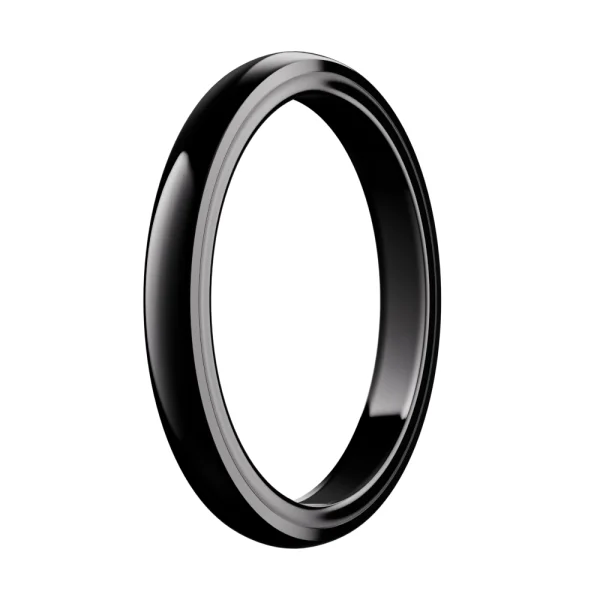
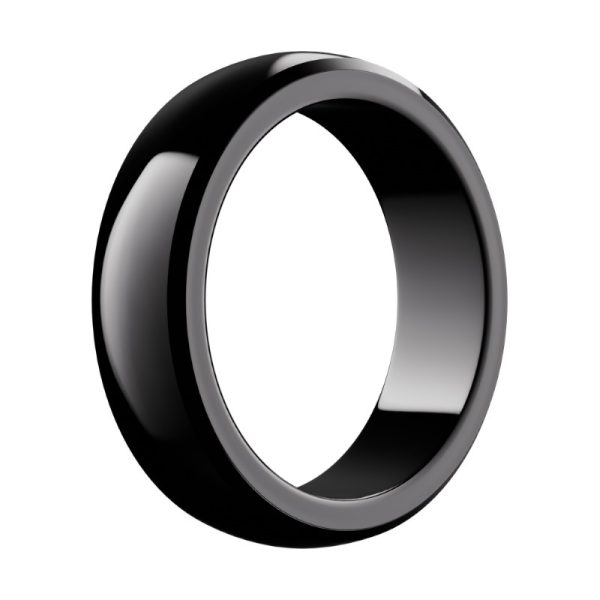
Discover Ring NFC—your wallet on your finger.
Choose the perfect solution for active people who value convenient minimalism, and then pay with a single gesture—no phone or wallet needed!
-
Always with you
-
Elegant design
-
No charging required
Create a family set
Add the NFC Ring to your order!

Specifications
Additional information
| Color | Black |
|---|---|
| Breathable fabric |
Yes |
| Template |
Gamepad |
| Strap width |
21.5 mm |
| Clasp |
Velcro |
| Max wrist circumference |
~ 185 mm (depending on the size of the attached watch) |
| Compatibility |
watches / smartwatches with a 20 mm lug width |
| Responsible Persons | Maxcom S.A., ul. Towarowa 23a, 43-100 Tychy, Poland, [email protected] |
| Responsible manufacturers | Maxcom S.A., ul. Towarowa 23a, 43-100 Tychy, Poland, [email protected] |
| Water resistance | ATM1/IP68 |
User Reviews
This product does not have any reviews yet
Questions and Answers
I can’t make a call on the phone I bought.
Please verify that the number you are dialing is correct. When dialing a number in another country, always add the appropriate country code (e.g., Germany 0049 or +49). If you have a prepaid card, please check that there are sufficient funds in your account.
The SIM card is inserted; only emergency calls (112) can be made.
Make sure the SIM card is installed correctly.
My old SIM card doesn’t fit in my new phone.
Contact your mobile carrier’s nearest service center. They will replace your SIM card with the correct size to fit the SIM slot of your new phone.
How can I track the status of my shipment?
On the day we ship your package, you’ll receive an email with the tracking number and a link to track your shipment. Please note that the courier has 2 business days to deliver the package.
Will the courier call me before delivery?
Courier companies are not required to contact the customer by phone in advance. On the day the device is shipped, you will receive a message containing the tracking number and contact information for the courier company delivering the device. To determine the exact date and time of delivery, please contact the courier company directly.
Can I specify the exact delivery time for my package?
Please note that as a store, we are unable to specify the exact time of delivery by the courier company. On the day the device is shipped, you will receive a message containing the tracking number and contact information for the courier company delivering the device. To determine the exact date and time of delivery, please contact the courier company directly.
Related products